
Many users find themselves locked out after adding a new SSH key in the DMIT console. The underlying reason is straightforward: adding a public key to your account's key library does not automatically bind it to your virtual machine, and binding it requires an instance reboot from the control panel before changes take effect.
You do not need to reinstall the operating system to solve a key replacement issue. Reinstalling is destructive and wipes existing data. As long as the server is running properly, following the official console workflow will restore access smoothly.
This guide applies to Linux instances managed through the DMIT client area. If you previously customized your SSH configuration inside the OS—such as changing port 22 or disabling root login—use your custom values when following the connection instructions below.
Step 1: Add or Generate a Public Key in Services SSH Keys#
Before attaching a new key to your server, the corresponding public key must exist in your DMIT account library.
Log in to the DMIT client portal, open the navigation menu, click Services, and select SSH Keys (see the DMIT SSH key library guide). You have two options:
- Add an existing local public key: Click Add Key, paste your OpenSSH public key string (usually starting with
ssh-ed25519orssh-rsa) into the public key box, provide an identifiable name, and click Add SSH Key to save it. Never paste a private key into the public key field. If you upload your own public key, store the matching private key safely on your local computer; the platform cannot retrieve lost private keys for you. - Generate a new key in the panel: Click Generate New Key. The system defaults to modern Ed25519 keys. Once generated, your browser will automatically download a zip archive. Store this archive securely. Extracting it reveals three files:
.pem: OpenSSH private key for Linux, macOS terminal, and compatible clients..pub: The matching SSH public key..ppk: PuTTY private key for PuTTY and legacy Windows tools. After downloading the archive, give the key a name and click Add SSH Key to save the generated public key into your account library.
Step 2: Bind the New Key in the Instance Access Panel#
Once the public key is saved in your library, assign it to the target virtual machine.
- Return to your service list and open the target instance management page.
- Click the Access tab (see the DMIT apply SSH keys guide).
- Click Change Key.
- Select the new key you just added to your library.
- Click Save to Instance to confirm the assignment.
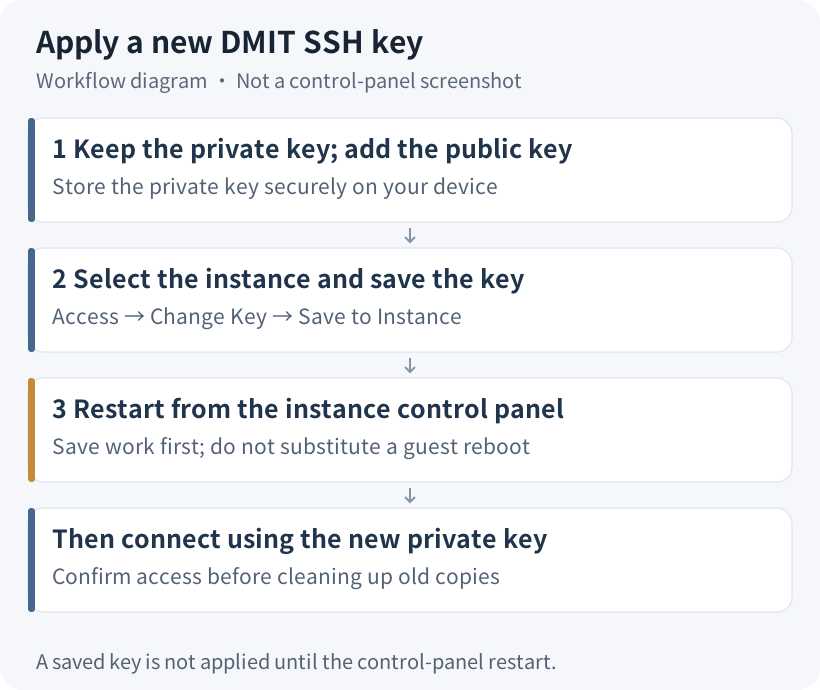
Step 3: Reboot the Instance from the Control Panel#
Clicking Save to Instance alone does not hot-reload the key into a running system. Official documentation explicitly states that you must reboot the instance from the DMIT control panel to write the new public key. Running the reboot command inside the Linux terminal will not trigger this control-plane sync.
When you click Save to Instance, the interface offers two reboot options:
- Reboot immediately: Check Agree to mandatory Shutdown and click Confirm. The panel will initiate a restart to apply the key.
- Reboot later: If you have active workloads running, you can postpone the restart. According to official documentation, the previous key remains valid until the control panel reboot occurs, allowing you to finish ongoing work.
Practical advice: Before confirming the reboot, save active files, pause database transactions, and verify that important data is backed up. The reboot will terminate active SSH sessions, and you will reconnect using the new private key once the system comes back up.
Step 4: Verify the Connection with the New Private Key#
Once the control panel indicates that your instance is back in the Running state, test the connection from your local client.
macOS and Linux terminal: Restrict the private key file permissions to your local user, then connect:
chmod 600 ~/Downloads/dmit-new.pem
ssh -i ~/Downloads/dmit-new.pem -p 22 [email protected]
Note: Replace ~/Downloads/dmit-new.pem with the exact path to your local private key, and replace 203.0.113.10 with your instance's public IP. If you customized the SSH port or user, adjust those parameters accordingly.
Windows clients:
Do not run chmod on Windows. Open your graphical SSH client (such as PuTTY, Termius, or Xshell) and load the .ppk or .pem private key in the connection authentication profile. Never configure the .pub file as a private key.
If a host key confirmation prompt appears during your initial connection to a new address or port, inspect the fingerprint and type yes to proceed. Replacing user login keys does not inherently alter the server host fingerprint.
Post-verification housekeeping:
Once logged in, delete obsolete local copies of the old private key to avoid confusion. Keep in mind that the control panel key swap deploys your new public key, but does not guarantee the removal of every historical key you may have manually appended to ~/.ssh/authorized_keys. Inspect that file if your security policy requires revoking old keys. Update any automated CI/CD pipelines or backup scripts that reference the old key path.
Step 5: Troubleshoot Errors and Use Web Console for Recovery#
If you still cannot connect after rebooting, use this troubleshooting reference to identify the cause:
| Symptom / Error | Probable Root Cause | Recommended Action |
|---|---|---|
Permission denied (publickey) | Key mismatch or pending reboot | Ensure the local private key matches the public key selected in the panel. Verify the username is root (or your custom user), and confirm the instance rebooted via the DMIT panel. |
Connection timed out | Network obstruction or instance offline | Check if the instance status is Running in the portal. Verify the IP address, SSH port (default 22), and check local network firewalls. |
| Private key error / permissions too open | Incorrect file path or permissive permissions | Verify the local file path. On macOS/Linux, run chmod 600 <path-to-key>. On Windows, re-import the private key in your graphical client. |
Emergency access via web console: DMIT server images disable remote root password authentication over SSH by default. If you lose your private key completely, you can recover access through the web console:
- Navigate to Access in the instance management dashboard and click Change Password to set a new root password.
- Click the Console button at the top of the instance management page (refer to the DMIT instance FAQ guide).
- Log in to the web console by entering
rootand the password you just configured.
Note: Setting a root password in Access is intended for emergency maintenance via the web console; it does not enable remote SSH password logins over the network. Once logged into the console, you can inspect and fix ~/.ssh/authorized_keys or SSH configuration files directly.
Submitting support tickets: If an unexpected platform issue persists, submit a ticket through the DMIT portal. Include your instance ID, the exact timestamp of the failure, and the full error message from your terminal. Never paste or attach private keys in your ticket.
For related connection best practices, explore our tutorials on First SSH login and SSH keys and security. If you are evaluating server specifications for a new deployment, check our DMIT buying guide, view Current DMIT plans, or visit the DMIT official website for current availability.
Update log: October 24, 2026: Compiled key assignment and panel reboot workflows from official DMIT documentation, with updated troubleshooting steps.