
When websites hosted on your DMIT instance fail to load, respond sluggishly, or drop connections, do not rush to pay renewal invoices, reboot repeatedly, or reinstall the operating system. DMIT packages apply different overage policies; not all plans throttle port speeds or suspend servers identically. When facing issues, the most important first step is to clarify your instance's usage, overage rules, and upcoming reset date.
First Check These Four Items#
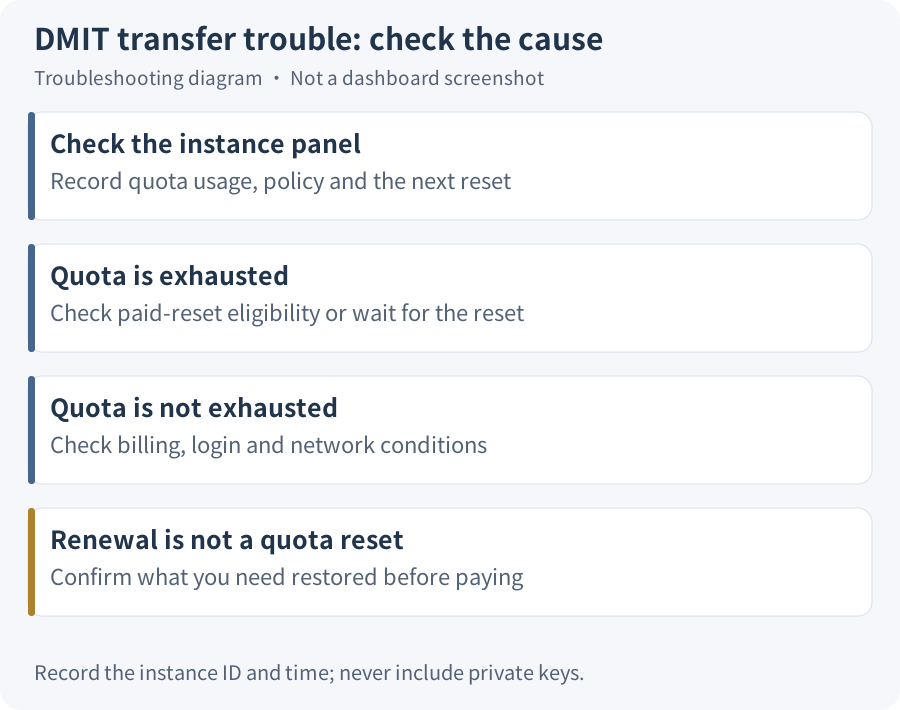
When encountering unexpected outages or slow speeds, log in to your dashboard and verify these four key details:
- Instance Status: Check whether the virtual server is marked active or restricted.
- Bandwidth Usage: Review the consumed traffic against your allocated quota for the current period.
- Next Reset Date: Record the exact upcoming traffic reset date shown in the dashboard.
- Billing Status: Confirm whether there are any unpaid renewal invoices pending.
It helps to distinguish data quota from port speed: bandwidth quota (such as 1000 GB per month) represents total data volume over a period, whereas port speed (such as 1 Gbps) is instantaneous transmission throughput. Running out of data quota does not mean your network adapter is broken, and rebooting the server will not clear consumed traffic.
Three Ways Overages Are Handled#
According to the DMIT instance FAQ, bandwidth overage handling generally falls into three categories:
| Overage Policy | Behavior After Exceeding Quota | Restoration Path |
|---|---|---|
| Suspend on overage | Public network access is cut off; hosted services become unreachable | Wait for the next automatic reset, or check if paid reset is supported |
| Throttle on overage | Port speed drops significantly; basic SSH connectivity is prioritized while web traffic may stall | Wait for the next automatic reset, or check if paid reset is supported |
| Unlimited quota | Normal operation continues without volume-based interruptions | Continues operating |
Which policy applies to your server depends on the specific product specifications shown in your control panel. Under throttled conditions, the provider prioritizes basic terminal access for administrative tasks rather than guaranteeing normal website availability.
When an instance is restricted due to quota exhaustion, you generally have two recovery choices:
- Wait for the automatic monthly reset: Traffic resets automatically each cycle. Note that this date aligns with your instance cycle rather than the first day of the calendar month; rely on the exact date displayed in your panel.
- Check for a paid reset option: Most standard packages allow manual paid resets before the cycle ends. If restoring production access quickly is essential, check whether your specific plan supports this feature in the control panel.
Why Renewing Did Not Restore Service#
Many administrators pay their renewal invoices immediately after an outage, only to find their server remains unreachable.
The core reason is straightforward: billing renewal and bandwidth reset are two entirely separate mechanisms. As outlined in the DMIT billing FAQ, paying an upcoming renewal invoice extends the instance's active service period; it does not clear or refresh the current monthly bandwidth usage. If an instance is suspended due to quota exhaustion, paying a renewal invoice alone will not restore network connectivity.
If your invoice is paid but your server remains offline, follow these diagnostic steps:
- Verify remaining bandwidth: If your quota is completely used up, the issue is bandwidth exhaustion; wait for your reset date or purchase a reset if eligible.
- Check system and network connectivity: If the dashboard shows available quota and active billing, avoid assuming bandwidth is completely ruled out, as metrics can experience slight processing delays. Test local network routes, inspect firewalls, and review SSH login checks to troubleshoot remote access.
- Open a support ticket for clarification: If the server remains unreachable after basic checks, reach out via DMIT support tickets to confirm the exact reason for the suspension.
When opening a ticket, provide a concise, structured checklist:
- Instance Identifier: VM or Service ID
- Time of Incident: Date and timestamp, including your timezone
- Current Status and Usage: Dashboard status, consumed traffic, and next reset date
- Symptoms Observed: Ping test results, specific SSH error outputs, or web response codes
Security Note: Never include root passwords, SSH private keys, or sensitive payment details in ticket messages. Redact sensitive personal data before attaching screenshots.
How Traffic Is Calculated and Daily Budgeting#
DMIT accounts for bandwidth using two primary models: bidirectional sum (inbound plus outbound) and peak direction (taking whichever direction is larger: Max(In, Out)).
It is important to understand that "peak direction" does not mean "outbound only." If your server receives substantial external data so that inbound traffic exceeds outbound, your measured usage will reflect the larger inbound figure.
The following simplified hypothetical examples illustrate the difference (for calculation illustration only, not actual plan specs):
| Accounting Method | Hypothetical Inbound | Hypothetical Outbound | Recorded Usage |
|---|---|---|---|
| Bidirectional Sum (In + Out) | 100 GB | 60 GB | 160 GB |
| Peak Direction (Max) | 100 GB | 60 GB | 100 GB |
Once you understand how your traffic is measured, you can establish a simple daily budget. For example:
- Suppose your instance has 200 GB of remaining traffic and 5 days left until the dashboard reset date.
- That translates roughly to an average daily allowance of 40 GB (200 ÷ 5).
Keep in mind that this is an operational rule of thumb, not an enforced daily cap from the provider. In real-world environments, traffic fluctuates with peak visitor hours and automated jobs. Keeping a safety buffer each day helps prevent sudden downtime before your reset date arrives.
Preventing Future Overages and Next Steps#
To minimize the chance of unexpected quota exhaustion in the future, consider implementing these operational checks:
- Streamline scheduled backups: Review backup routines to avoid pushing redundant, uncompressed full dumps across the network; adopt incremental backups and exclude cache folders where appropriate.
- Adjust synchronization frequency: Reduce the polling rate for non-essential data mirroring and postpone bulky, non-critical file transfers.
- Audit abnormal traffic: Inspect web server logs to detect aggressive web scrapers, vulnerability scanners, or unauthorized proxy abuse.
These practices represent general server administration advice rather than service guarantees from the provider.
When an instance runs out of quota, it is generally best to evaluate free automatic reset timing or available paid reset options first. There is rarely a need to purchase a whole new virtual server merely because of an isolated overage. If your baseline workload consistently outgrows your current quota, you can review current offerings on the DMIT website, or compare specifications in our DMIT buying guide and Current DMIT plans.
Updated on 2026-10-25 with consolidated troubleshooting steps, reset distinctions, and bandwidth budgeting guidelines for DMIT instances.