
When a cloud server suddenly stops responding, it is tempting to request a quick IP change or order a replacement instance. However, connectivity drops are frequently caused by stopped virtual machines, local firewall rules, bandwidth limit exhaustion, or temporary routing fluctuations. Replacing an IP without proper checks adds unnecessary administrative overhead without resolving the root issue.
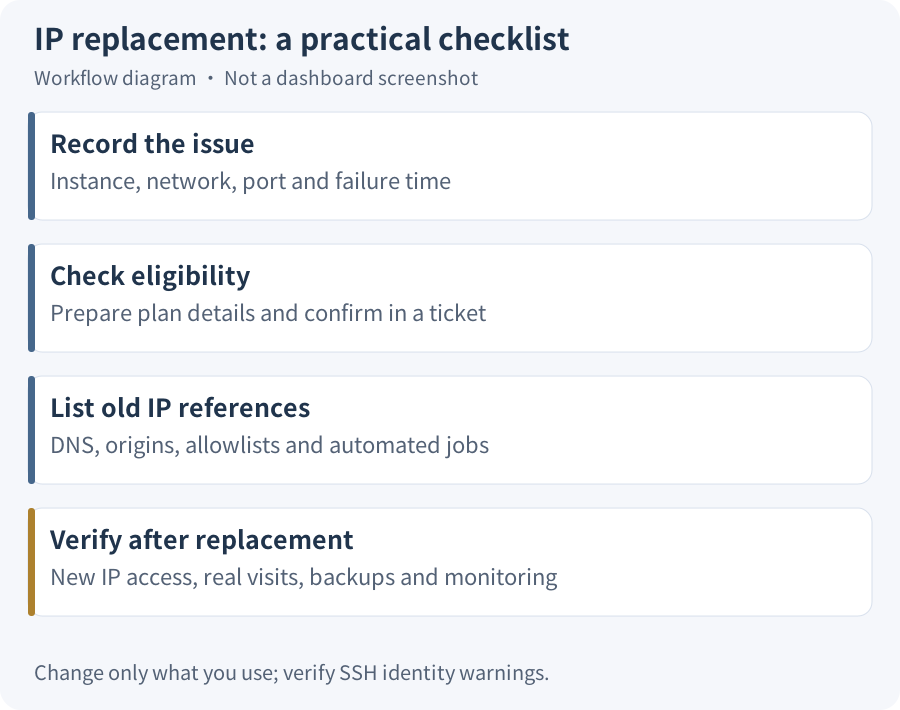
A systematic troubleshooting approach saves time: verify basic instance runtime and service health first; confirm policy eligibility before opening a support ticket; and once a new address is assigned, systematically update all linked configurations. Existing users can resolve issues through standard channels without purchasing new servers.
DMIT IP Replacement Rules and Eligibility#
All IP replacements on DMIT must be handled through the support ticket system. Eligibility criteria and fees depend on the product series, and all conditions within a category must be met simultaneously:
| Plan Series | Replacement Type | Required Conditions (All Must Be Met) |
|---|---|---|
| Pro / EB | Free | Purchased ≥ 7 days (from day 8); ≥ 15 days since last request (most recent request across all IPs, including paid requests); ICMP & all TCP ports blocked; ≥ 7 days remaining |
| Pro / EB | Paid ($5) | ≥ 7 days since last replacement request |
| T1 | Paid ($5) | Purchased ≥ 24 hours; ≥ 3 days since last request; ≥ 3 days remaining |
Pro/EB instances blocked upon initial provisioning qualify for immediate free replacement without standard waiting periods. Review the DMIT IP FAQ for official terms.
Required System and Network Checks Before Applying#
Before spending money or requesting an IP replacement, complete these basic checks to distinguish software or quota failures from external network blocks:
- Verify Instance Runtime and Quotas: Log into the control panel to ensure the instance is active, the billing status is current, and the bandwidth allocation is not exhausted. See DMIT transfer quota checks for quota verification steps.
- Test Active Service Ports: ICMP ping failure does not prove that all TCP traffic is blocked, just as failures on a few default ports do not prove complete port blocking. Test the exact custom ports configured for SSH or application services.
- Cross-Test on Multiple Networks: Test connectivity from at least two separate networks (such as mobile cellular data and fixed home broadband) to rule out local routing issues.
- Identify Error Signatures: Differentiate connection timeouts from connection refused errors and authentication failures. If you reach the server but get authentication errors, network routing is functioning; consult DMIT SSH key change checks to fix access keys instead of changing IPs.
There is no need to port-scan all 65,535 ports or disable server firewalls; let support verify the final status.
Support Ticket Template and Submission Guidelines#
Once criteria are confirmed, submit your request via the DMIT official ticket submission portal. In accordance with the DMIT ticket FAQ, provide all relevant diagnostic observations in the initial message. Avoid submitting multiple rapid replies without new evidence, as updates can reset queue priority. Never share private keys, root passwords, or billing credentials in support tickets.
Use this concise template with your actual diagnostic data:
Subject: IP Replacement Request - [Instance ID]

Hello,

I would like to request an IP check and possible replacement for my instance:
- Product Series: [Product Series]
- Instance ID / VM: [Instance ID]
- Current IP: [Current IPv4]
- Activation Date: [Activation Date]
- Last IP Change Request: [Date of Last Request, or None]
- Expiry Date: [Expiration Date]
- Observed Issue Time: [Issue Timestamp with Timezone, e.g. UTC+8]
- Test Observations:
  * Network A: [Network/Carrier A] - Port [Port Number]: [Timeout / Refused / Observation]
  * Network B: [Network/Carrier B] - Port [Port Number]: [Timeout / Refused / Observation]
  * ICMP / Ping: [Reachable / Unreachable]

Please help verify the network status and confirm my eligibility and any applicable fees before proceeding with the replacement. Thank you.
Stick to concrete diagnostic observations in the template rather than claiming all ports are definitively blocked.
Sequential Configuration Updates After Replacement#
Before replacement takes place, catalog every service referencing the old IP and back up key configuration files. When the new address is delivered, update only the items actively in use:
- Verify Direct Connectivity First: Connect directly to the new IP over SSH or application ports to confirm the operating system has initialized the new network interface correctly.
- Update DNS Records and CDN Origins:
- According to the Cloudflare DNS record types reference, A records map IPv4 addresses, while AAAA records map IPv6 addresses. Update the domain's A record with the new IPv4 address. Do not place IPv4 addresses into AAAA records. If your assigned IPv6 address has not changed, leave the existing AAAA record untouched.
- If the site sits behind a CDN reverse proxy, update the origin server address in the CDN management console.
- DNS propagation depends on TTL settings, as detailed in the Cloudflare DNS TTL reference. Refreshing a local browser does not force recursive DNS caches to expire immediately.
- Update External Inbound Allowlists: If your server connects to remote databases, external APIs, or webhooks that enforce IP-based firewalls, register the new public IP on those external services.
- Audit SSH Clients and Host Fingerprints:
- Update the
HostNameentry in your local~/.ssh/config. - If your client raises a host key warning, follow the security recommendations in the OpenSSH manual. Verify the server fingerprint via a trusted administrative console (such as the DMIT web console) before updating. Never disable host key checking or delete your entire
known_hostsfile.
- Update the
- Reconfigure Backup and Monitoring Services: Update target IP addresses in automated backup sync jobs, uptime probes, and status monitors to prevent false outage alerts.
Service Acceptance and Verification Records#
Complete service acceptance following post-replacement configuration:
- Test website pages, application APIs, and critical endpoints from real access networks to ensure regular visitor traffic flows properly.
- Confirm that external uptime monitoring platforms reflect the new IP address and report stable success metrics.
- Log the completion timestamp, retain the updated IP reference checklist, and archive configuration backups for future operational reference (preserving logs does not imply that previous IP assignments can be restored).
If you are planning new infrastructure deployments, review the DMIT buying guide and check Current DMIT plans. You can access the official platform via the DMIT portal.
Published on October 26, 2026, outlining verification criteria, diagnostic checks, and post-migration configuration steps for DMIT IP replacement.