
Anytime Mailbox Guide: How to Start Receiving Mail After Choosing Your Address#
At a glance: Which fees should you check when choosing a location? Where do you complete verification after paying? How do you scan, forward, and handle original mail after it arrives? A step-by-step guide with official screenshots.
Using a rented mailing address typically involves three steps: choose a suitable location and plan, complete identity verification on a computer, and manage mail online once it arrives.
Choose a Location and Plan#
Addresses on the Anytime Mailbox (ATMB) platform are provided by local physical mail-handling stores, postal centers, or coworking spaces. Fees, included allowances, and handling rules vary by location.
When choosing an address, first consult VPSMap's Anytime Mailbox Directory Check starting prices and existing records for locations in different areas; to compare locations on other platforms, you can also refer to iPostal1 Directory. “Pending Verification” on the page means no recent test record has been entered; it does not mean the address failed. “Residential Candidate” is also only a category assigned by the directory based on address attributes. You can also open Anytime Mailbox's Official Location Directory choose on the map. For an introduction to the platform, see Official Anytime Mailbox FAQ.
How to Read the Matching Status in the List#
In the location list, consider residential classification, mail-receiving agency status, and delivery matching separately:
- Residential Classification and Mail-Receiving Attributes: RDI shows the residential or business delivery classification in postal records, while CMRA indicates whether the address is a Commercial Mail Receiving Agency. Most locations are mail-receiving agencies; even a residential-candidate attribute does not establish actual residence.
- Delivery Point Validation (DPV): describes how the submitted address matches delivery records; it does not establish residential status, actual residence, or acceptance by banks. Queries in the list generally concern the location's street address and do not verify an individual's specific mailbox.
Common status labels shown in Chinese in the list and their meanings are as follows:
| Matching Status | What It Means and Important Considerations |
|---|---|
| Queried address matched | The submitted address matches delivery records. However, a street-address-only lookup does not verify a specific mailbox or guarantee that actual mail can be delivered. |
| Street matched; unit optional | The Street Address Matches, but the Submitted Unit Number Was Not Recognized. Records Indicate That a Unit Number Is Not Required for Delivery; This Does Not Mean You Can Omit the Provider-Required Suite or PMB, nor Does It Confirm Your Mailbox Number. |
| Check the unit number | The Street Address Matches, but the Unit Information Is Uncertain and Needs Verification or Correction. |
| Street matched; unit unconfirmed | The Primary Street Address Matches, but the Specific Unit Number Has Not Been Confirmed. |
| Required unit missing | The address is in a multi-unit building and is missing a required suite or unit number. |
| Address not matched | The Submitted Address Did Not Match a Valid Delivery Record. This Reflects Only the Lookup Result and Does Not Mean the Mailbox Location Has Closed. |
| Unverified | No Recent Test Record Is Available, or the Lookup Awaits an Update; This Must Not Be Treated as a Failure. |
After selecting and formally renting a mailbox location, follow the suite or PMB address format specified on the official website and use the actual number assigned to you in the account dashboard. Do not invent an example mailbox number.
After choosing a location, click Select Plan, then click Full Details Check Exactly What the Plan Includes.
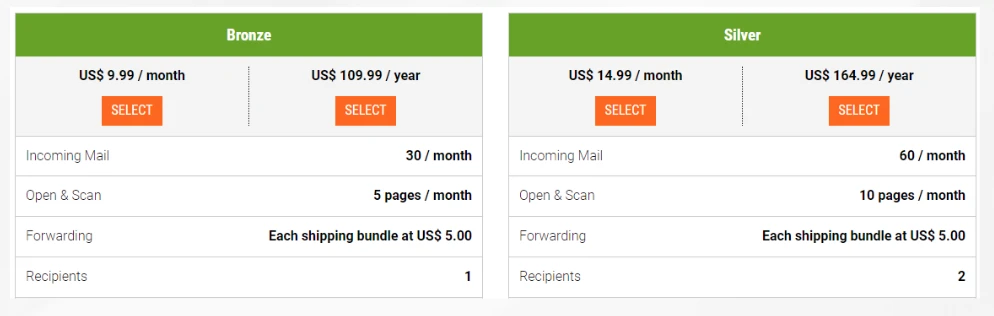
When comparing plans, focus on these main items (refer to the official explanation Choosing a Service Plan):
- Incoming Mail Allowance (Mail Received): The number of incoming mail items included free each month, with a per-item charge for excess mail.
- Scanning Allowance (Open & Scan): the number of free scanned pages included each month, with additional pages charged individually.
- Mail Storage Period and Fees (Storage): the free storage period for original physical mail at the location, followed by the billing cycle and fees after that period. Each location sets these independently.
- Forwarding Handling Fee: The packing and handling fee charged by the mailbox location, in addition to actual postage, when forwarding letters or packages to another address.
- Billing Cycle: first-time users can start with monthly billing and adjust as needed once familiar with the service.
Complete Verification on a Computer#
After choosing and paying for a plan, the address remains inactive. US postal regulations require an authorization form to be submitted and notarized first.
After paying, log in to your account using a desktop browser. On the home page, there is a Complete Verification button; click it to begin verification. This step is currently unavailable in the mobile app.
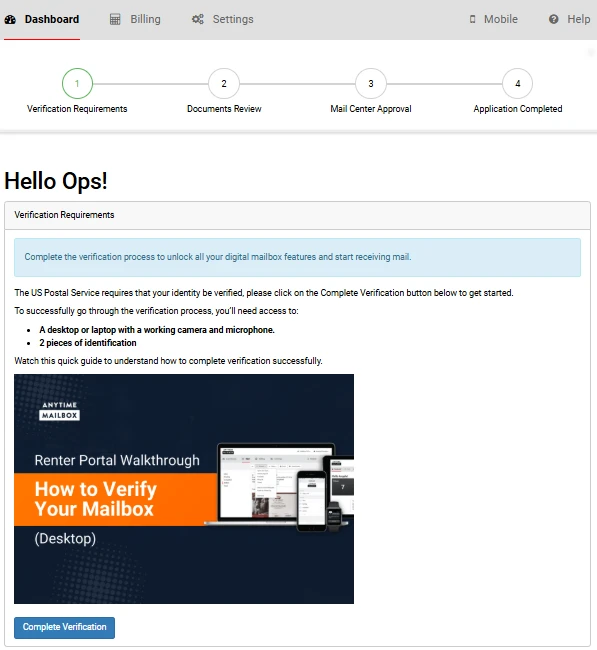
Follow the on-screen prompts to enter your personal information. When asked whether you have a US Social Security No., select the answer that truthfully applies: Yes or No.
Verification requires two different valid identity documents:
- Photo Identification: such as a passport.
- Proof Documents Showing Your Name and Residential Address: examples include a current lease, home insurance policy, motor vehicle insurance policy, or vehicle registration. ATMB explicitly does not accept utility bills, bank statements, or credit-card statements.
Provide these two documents based on your actual permanent residential address; non-US documents are also accepted. Requirements for non-English documents vary by location, so email the location beforehand to ask whether a certified English translation is required. For details, also refer toID Guide for Non-US Users.
After you complete the information, the system automatically generates aThe Latest USPS Form 1583. Enter the mailbox location's address and your assigned mailbox number in section 2, your real residential address in section 4, and the destination for forwarding or transferring mail in section 6. Each adult user must complete verification separately. For detailed instructions for every section, see the dedicated USPS Form 1583 Completion Guide, simply use the system-generated electronic version for verification.
Then click the following on the page: Use Online Notary Open the online notarization platform (such as OneNotary Partner Channel). The notarization fee is the live amount shown at checkout (refer toOfficial Online Notarization Instructions). Have a camera and microphone ready on your computer, with both original identity documents at hand. During the video call, follow the notary's instructions to confirm your information and sign.
After notarization, return to your ATMB account to check the mailbox location's review status. If additional documents are requested, upload them as instructed in the dashboard. The mailbox becomes active only after the location approves the review.
Handling Incoming Mail#
After mail reaches the location, staff photograph the outside of the envelope and upload it to the system. Your Inbox will show a new-mail notification.
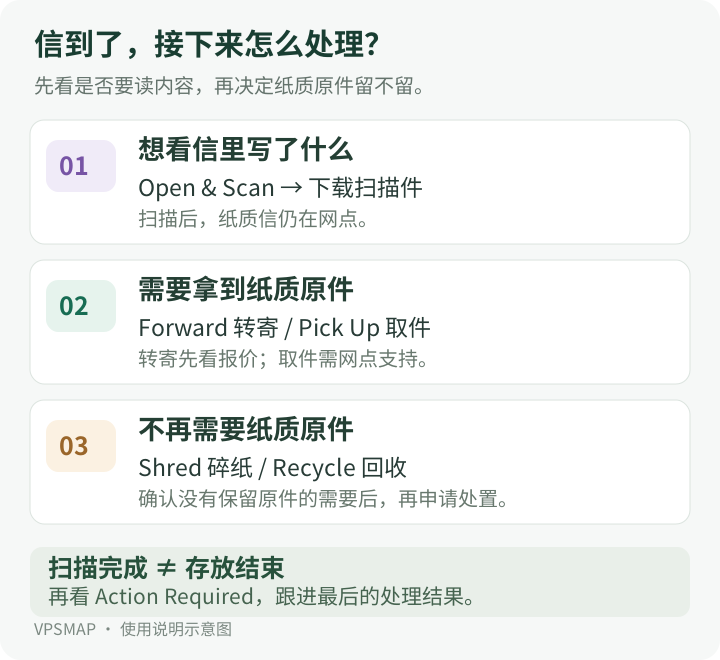
Open the dashboard and choose the appropriate action for each mail item:
Open and Scan the Contents If you only want to know what the letter says, in Inbox Select the mail item and click the following at the top: Actions → Open and Scan → Submit. After the location opens and scans the mail, an option to view or Download button to download the PDF directly (see Official Open and Scan Instructions). After scanning, the physical mail remains at the location, and its storage time continues to accrue. Once the location's free storage period is exceeded, storage fees apply according to its rules (refer toOfficial Storage Fee Rules)。
Forward Physical Originals (Forward) If the mail contains bank cards, checks, or other items you need to receive in their original physical form: First add your actual delivery address in the account settings. In Inbox Select the mail item and click Actions → Forward → Request Quote. After the location calculates packaging and shipping costs, it will, in Action Required(Pending) to provide a quote. After confirming the amount, click Approve Pay and send; when forwarding outside the United States, enter customs declaration details as prompted on the page (seeGuide to Requesting a Forwarding Quote). If you are near the mailbox location and the store supports it, you can also schedule a Pick Up.
Shred or Discard (Shred / Recycle) If you have already downloaded the scan and are sure you no longer need the original, you can go to Actions Select the following in the menu: Shred(shredding; locations usually charge a handling fee per item) or Recycle(place in the recycling bin). Once the location has processed the request, the letter no longer occupies storage space there.
In everyday use, apart from doing so in Inbox check photos of new mail, and periodically watch Action Required quotes awaiting confirmation or storage reminders there.